Replacing a laptop with a rooted Android tablet
Use a rooted Android tablet, AVNC and Herdr Mobile as clients for a workstation that keeps your desktop and coding agents running. An Android tablet can replace the laptop you carry without replacing the workstation that does the work. Use AVNC for the desktop and Herdr Mobile for agents and terminals; the server keeps working when the tablet disconnects or switches off. The tablet does not need a local Linux installation, a container full of development tools, or enough RAM to build the project. Those stay on a Linux workstation or VM. Android supplies the display, keyboard, mouse and network connection. There are two access paths: In the Qubes setup, Tailscale runs in a networked qube called Tailscale supplies the private network to The workstation must remain powered on and awake. Disconnecting a client is not the same as logging out of the desktop, stopping the Herdr server, or suspending its host. A server reboot does not preserve arbitrary running processes. The reference tablet is a Lenovo TB321FU running Android 16 with ZUI. The remote-access arrangement is general; BetterZUIKey and the keyboard-policy changes are specific to supported Lenovo firmware. Root is not required for Tailscale, AVNC or Herdr Mobile themselves. Root is useful here because the operating system intercepts shortcuts before the remote client can receive them. It is not a way to give the tablet the workstation’s computing power. Back up the tablet before unlocking its bootloader. Unlocking commonly wipes user data; unsupported images or a wrong partition can leave it unable to boot. Keep the matching stock firmware and the device’s recovery instructions available on another machine. Follow the official Magisk installation instructions, together with bootloader-unlock instructions for the exact model and firmware: Do not flash somebody else’s patched image, guess the target partition, or relock the bootloader around modified images. The tablet used for this setup was already rooted; these are prerequisites, not a separately validated TB321FU flashing recipe. With Magisk 31.1, an unapproved For Termux: Open Magisk → Superuser → +. Grant access to Termux ( In Termux, check: The output should include A remote desktop is not much use if BetterZUIKey changes that keyboard-policy chain on supported Lenovo firmware. The version used here requires libxposed API 102, not just any Xposed-compatible framework or an installed APK: Zygisk loads modules into Android processes. Vector supplies the hooks; BetterZUIKey uses them to change shortcut handling. The old original LSPosed release is not a substitute for a framework providing the required API. These modules modify a central Android system process. Use versions compatible with the installed firmware and know how to disable a bad module before experimenting. BetterZUIKey can work through the framework without a separate blanket Superuser grant to its own app. For the shortcuts needed remotely, select pass-through rather than ignore. “Ignore” discards the event; it does not deliver it to the desktop. Keep a reliable local way to leave the remote application. A Win tap sent after key release is not a held Super key. Window-manager shortcuts need the remote desktop to see the modifier go down, another key arrive while it is held, and the modifier come back up. The AVNC-specific mapping configured on the reference tablet was: To reproduce that arrangement, use BetterZUIKey’s application template to map Win to Right Alt while AVNC is foreground, and enable AVNC’s Right Alt → Super mapping under its input/key-mapping settings. Disable the tablet’s Win long-press action in that same template. Do not substitute a “send shortcut on release” action for a held-key mapping. This uses up Right Alt inside AVNC. If you need it for AltGr or another desktop binding, choose a different arrangement instead. The mapping was configured on the reference tablet, but I have not verified the complete physical held-key sequence. Test it with your own keyboard before relying on it. Check plain typing, Follow the Tailscale installation instructions on the tablet and the networked endpoint, sign both into the intended tailnet, and connect the Android VPN. In Qubes, the endpoint is In Record its Tailscale address or MagicDNS name. AVNC connects to that address on port Restrict access with the forwarding qube’s firewall and tailnet policy. Do not add a public router port-forward just to reach this setup. Tailscale membership alone is not a substitute for reviewing who may connect. Install and enable OpenSSH in the qube that runs Herdr. The example below calls that qube The VNC forward does not create an SSH forward. If your gateway already provides a working SSH endpoint, keep it and skip the creation steps below. In dom0, add a narrowly scoped rule to a qrexec policy file under Replace Install This binds the gateway’s listener to its Tailscale IPv4 address and forwards through qrexec to the work qube’s local SSH port. The Before the first client connection, obtain the SSH host-key fingerprint through an existing trusted session or console in the destination work qube, not in the forwarding qube: Verify the endpoint from a trusted client, comparing the offered host key with that independently obtained fingerprint: Substitute the gateway’s actual tailnet address and forwarded port. Compare the same host-key algorithm on both ends; a dedicated SSH daemon may use a key outside This is ordinary OpenSSH over Tailscale. Select Private key or Password in Herdr Mobile, not its Tailscale authentication option. Tailscale SSH is a separate feature that must be offered by the actual SSH endpoint; a Tailscale address alone does not enable it. This SSH connection is for Herdr; AVNC’s VNC connection is independent of it. On a non-Qubes Linux host, Tailscale can run on the host itself and there is no qrexec step. For direct VNC access, configure the server to listen only on its private/VPN address, with access restricted to authorized clients. The loopback listener and qrexec forwarding steps below are specific to Qubes. AVNC connects directly to The loopback address belongs to dom0. It is the backend destination reached by qrexec, not the address to enter in AVNC. Install TigerVNC’s server tools using the desktop host’s supported package-installation method. In Qubes, use the dom0 package-management mechanism rather than giving dom0 Internet access. From a terminal inside dom0’s graphical session, set a VNC password and start This shares the current X display; it does not create a new desktop for each connection. Check that the listener is restricted to loopback: Expect loopback addresses such as This is an X11 example. On Wayland, use a remote-desktop server supported by the compositor, or a deliberately configured X11 session. Do not assume x0vncserver can capture a Wayland desktop. A headless host also needs a graphical session or virtual-display setup first. In dom0’s qrexec policy, allow only the intended source qube and destination port: Before starting the listener, restrict the forwarding qube’s port For a new forward, run this as the normal user in Persist the forward and its firewall restrictions through the forwarding qube’s boot configuration. The Qubes remote-access discussion covers the boundary and its tradeoffs; this is not a reason to allow arbitrary ports into dom0. Classic VNC authentication uses only the first eight password characters and does not encrypt the desktop stream. Tailscale encryption ends at Remote desktop access to dom0 also carries the desktop user’s administrative authority, and a vulnerability in the VNC server can affect the host. Keep its listener on loopback, narrowly scope the qrexec policy, and do not expose the forwarding listener publicly. Install AVNC from its official release or its linked app-store distribution, then add a connection with: There are no SSH host, user or key fields to configure for this VNC path. If AVNC cannot connect, check Tailscale reachability, the forwarding listener and firewall, the qrexec policy, and dom0’s local VNC listener—in that order. If it reaches the server but authentication fails, check the VNC password. Start with fit-to-screen scaling. Increase the desktop’s font or UI scaling if fitting it makes text unreadable. Select the pointer mode that suits your mouse or trackpad, then test scrolling, right-click, dragging and the keyboard mappings. Disconnecting AVNC should leave applications running. Locking the shared desktop can lock what AVNC sees too; disconnecting is not itself a physical lock. Test the intended locking behaviour while you still have local access. For agent work, a mobile interface is often more useful than a scaled-down desktop. I developed a terminal-focused fork of Herdr Mobile for this workflow. The instructions below use the publicly available upstream app; the local fork is not required. Use AVNC when you need a full interactive desktop terminal. Herdr runs on the server. The Android app authenticates over SSH and reaches Herdr through that user’s local socket. You do not need to expose a separate Herdr API port. Use the Linux account that will own the projects and agent processes, not root. Install Python 3, the desired agent CLI, and Herdr. For Herdr’s installer, download and inspect the script before running it: Keep Herdr running independently of the tablet’s SSH connection. On a new Linux installation with systemd, a user service is one option. Create Then, as that user: If the server must run without a login session, an administrator can enable lingering for that account: Make sure Herdr, Python and agent executables are available in the environment used to launch the work. If you already have a running Herdr server, keep its existing service arrangement; do not start a second manager or restart active agents just to follow this example. Download the APK and its matching Check that the APK’s filename reports OK, then install it on Android. These releases are the original app, not my local fork. The workflow here does not depend on the fork’s streaming-terminal features or tablet sidebar. On first launch, choose Add your first machine. Later, tap the machine count at the top left of the board to open Machines, then tap +. Fill in: Herdr Mobile uses trust on first use: the test automatically accepts an unknown host key and authenticates before showing its fingerprint. There is no pre-authentication confirmation dialog. Use a trusted network path for the initial test and prefer a dedicated key. Comparing the fingerprint afterwards cannot protect a password already sent during that test. For key authentication: On later connections, a changed pinned host key blocks access. Investigate the change rather than bypassing the warning. Select the server and open an existing agent pane or a supported agent session. The upstream app provides agent controls, conversation views and terminal output; it is not the fork’s full live ANSI terminal. Use AVNC for unrestricted interactive CLI work. Agents and their provider credentials remain on the server; the app stores its SSH credential on the tablet. Do not start a second agent merely to view an existing session. To change an address, user or key later, open Machines → ⋯ / More → Edit, test the connection, and Save. Server configuration is in Machines, not Settings. Changing the host or port requires a new host-key check; use the same trusted-path procedure. Use native Android applications for browsing, reading and local documents. Open AVNC when you need the full desktop, graphical tools or an unrestricted terminal. Open Herdr Mobile for agent conversations, controls and server-side pane output without fitting a desktop onto the screen. Use the app’s remote file browser to bring results onto the tablet and Android’s save/share interface to put them into another application. The SSH server needs SFTP enabled for file browsing. Copying a report locally does not move the project or its running tools off the server. Before depending on the arrangement away from home: Only work already submitted to the server can continue. An unsent draft or a follow-up held in the mobile client’s queue cannot be delivered while the tablet is off. A powered-off tablet cannot receive notifications, and Android can restrict networking during deep idle. Neither condition requires stopping a server-side agent. Reconnecting restores access; it does not undo a host suspend, server crash or reboot. This replaces carrying the workstation, not the need for one. Offline Android applications still work locally, but remote tools need a reachable host. Keep that host awake, retain a separate recovery path, and test its boot-time services before leaving physical access behind. Keep the workstation, replace what you carry
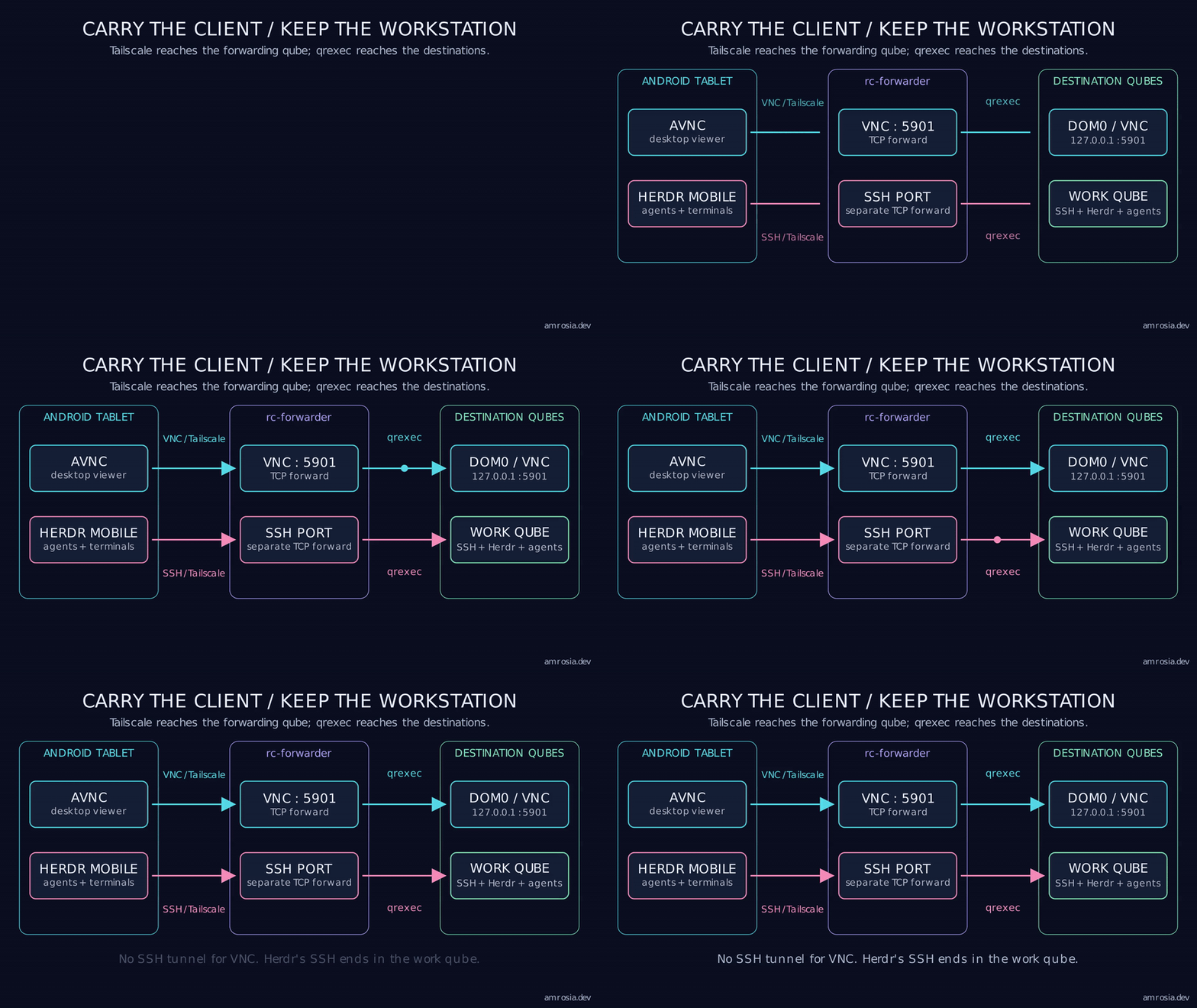
rc-forwarder. Its VNC listener forwards through qrexec to dom0; a separate SSH forward reaches the qube running Herdr. VNC does not use an SSH tunnel.rc-forwarder, not an application server that runs the work. It can connect peers directly or carry their encrypted traffic through a relay. Neither case moves the desktop or agents onto the tablet. What you need
rc-forwarder in Qubes), or an equivalent private network. Root and prepare the tablet
Use a device-specific rooting procedure
boot.img, init_boot.img, vendor_boot.img, or a device-specific recovery arrangement. Grant root explicitly
su request can return Permission denied without displaying a prompt. That is intentional: applications must be granted access ahead of time.com.termux).su -c id
uid=0(root). ADB’s shell has a separate identity and needs its own grant if you want adb shell su to work. Grant only the access you need; remote desktop and SSH clients do not need blanket root permission. Stop Android from stealing desktop shortcuts
Alt+Tab switches Android applications or holding Win opens the tablet’s assistant. Disabling a shortcut in ZUI’s settings is not always enough: the system may still consume the event instead of passing it to the foreground application.Magisk → Zygisk → Vector with API 102 → BetterZUIKey
android / system_server). Preserve held modifiers
Physical Win down → Right Alt down → AVNC sends Super down
Physical Win up   → Right Alt up   → AVNC sends Super up
Ctrl+C, Ctrl+V, Alt+Tab, Super combinations, and key release in a harmless editor or a disposable terminal. A working mouse says nothing about the keyboard path. Do not test uncertain Enter or shortcut mappings in a live agent prompt. Make the server reachable
rc-forwarder, not dom0.rc-forwarder, with Tailscale installed:sudo tailscale up
tailscale ip -4
5901. Herdr Mobile uses a separate forwarded SSH port that reaches the work qube. Neither requires giving dom0 a normal network connection or installing an SSH server there. Create the separate SSH forward for Herdr
work and uses a dedicated SSH listener on 127.0.0.1:22222 inside it. Configure the listener using your distribution’s SSH service mechanism, and check it with ss -lnt. If SSH already runs on another port, use that backend port in the qrexec policy and service argument instead; do not replace a working SSH setup just to match this example./etc/qubes/policy.d/, such as 30-tablet-ssh.policy:qubes.ConnectTCP +22222 rc-forwarder work allow autostart=no
work with the actual destination qube name. This rule allows access to its SSH listener, not to dom0, and still requires normal SSH authentication. With autostart=no, start the destination qube before connecting.socat in rc-forwarder. Restrict port 22222 with its firewall and tailnet policy before starting the listener. As the normal user in that forwarding qube, run:TS_IP="$(tailscale ip -4)"
socat "TCP4-LISTEN:22222,bind=${TS_IP},reuseaddr,fork" \
"EXEC:/usr/bin/qrexec-client-vm work qubes.ConnectTCP+22222"
TCP4-LISTEN port is the client-facing port; qubes.ConnectTCP+22222 and the policy select the backend port. Persist the listener and firewall through the forwarding qube’s service/startup configuration, starting the listener after its Tailscale address is available. Do not leave the permanent forward dependent on an open terminal.# Example for an OpenSSH Ed25519 host key; use the listener's actual key file.
ssh-keygen -lf /etc/ssh/ssh_host_ed25519_key.pub
ssh -o StrictHostKeyChecking=ask -p 22222 youruser@rc-forwarder
/etc/ssh/. Access the desktop with AVNC
rc-forwarder:5901 over Tailscale. The forwarding qube carries that TCP stream through qubes.ConnectTCP to the loopback-only VNC server on dom0:5901. AVNC’s built-in SSH tunnel stays disabled.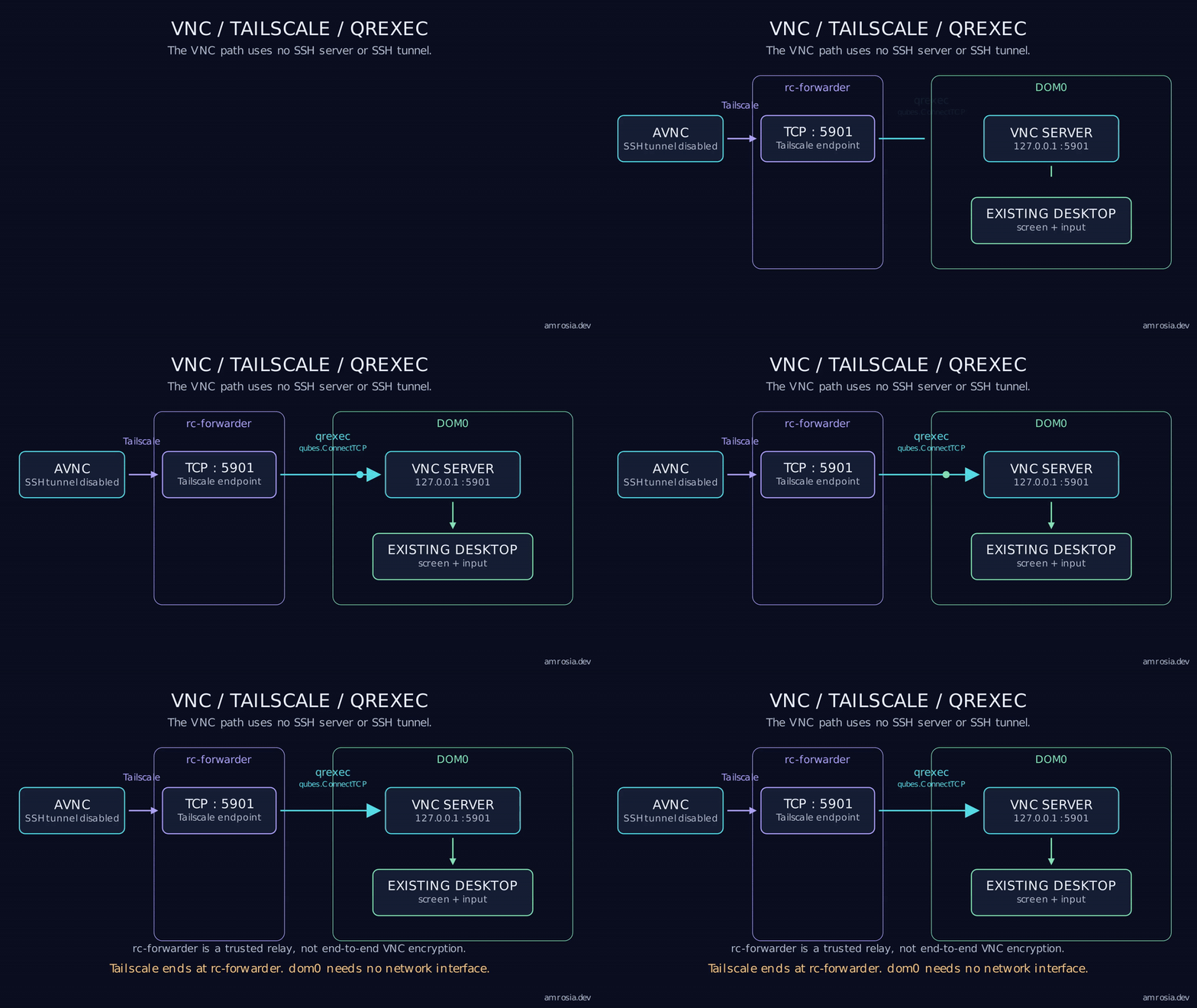
Tablet / AVNC
    │ VNC over Tailscale
    ▼
rc-forwarder:5901
    │ qrexec / qubes.ConnectTCP
    ▼
dom0:127.0.0.1:5901 → existing X11 desktop
Share an existing X11 desktop
x0vncserver:mkdir -p "$HOME/.config/tigervnc"
vncpasswd "$HOME/.config/tigervnc/passwd"
x0vncserver \
-display "$DISPLAY" \
-localhost \
-rfbport 5901 \
-SecurityTypes VncAuth \
-PasswordFile "$HOME/.config/tigervnc/passwd"
ss -lnt '( sport = :5901 )'
127.0.0.1 or ::1, not 0.0.0.0 or [::]. Keep this process running while testing. Once it works, arrange startup through the desktop’s autostart or graphical-session service so it receives the correct display and authentication environment. Forward through qrexec, not SSH
qubes.ConnectTCP +5901 rc-forwarder @adminvm allow
5901 to authorized Tailscale access. The stock qvm-connect-tcp helper can bind 0.0.0.0; its listener is not automatically VPN-only. Check both firewall and tailnet rules, and verify that non-VPN access is blocked.rc-forwarder, not in dom0. Do not start another copy if a listener already exists:qvm-connect-tcp 5901:dom0:5901
rc-forwarder. qrexec crosses the Qubes boundary, but does not make the VNC stream end-to-end encrypted against the forwarding qube. That qube is a trusted relay and can access the stream. If that trust is unacceptable, use an authenticated end-to-end VNC security mode supported by both viewer and server, with server-identity validation. Create the AVNC connection
Setting Value Connection name Any useful label VNC destination rc-forwarder’s Tailscale address or MagicDNS nameVNC port 5901VNC authentication The password set with vncpasswdSSH tunnel Disabled Connect Herdr Mobile to the server
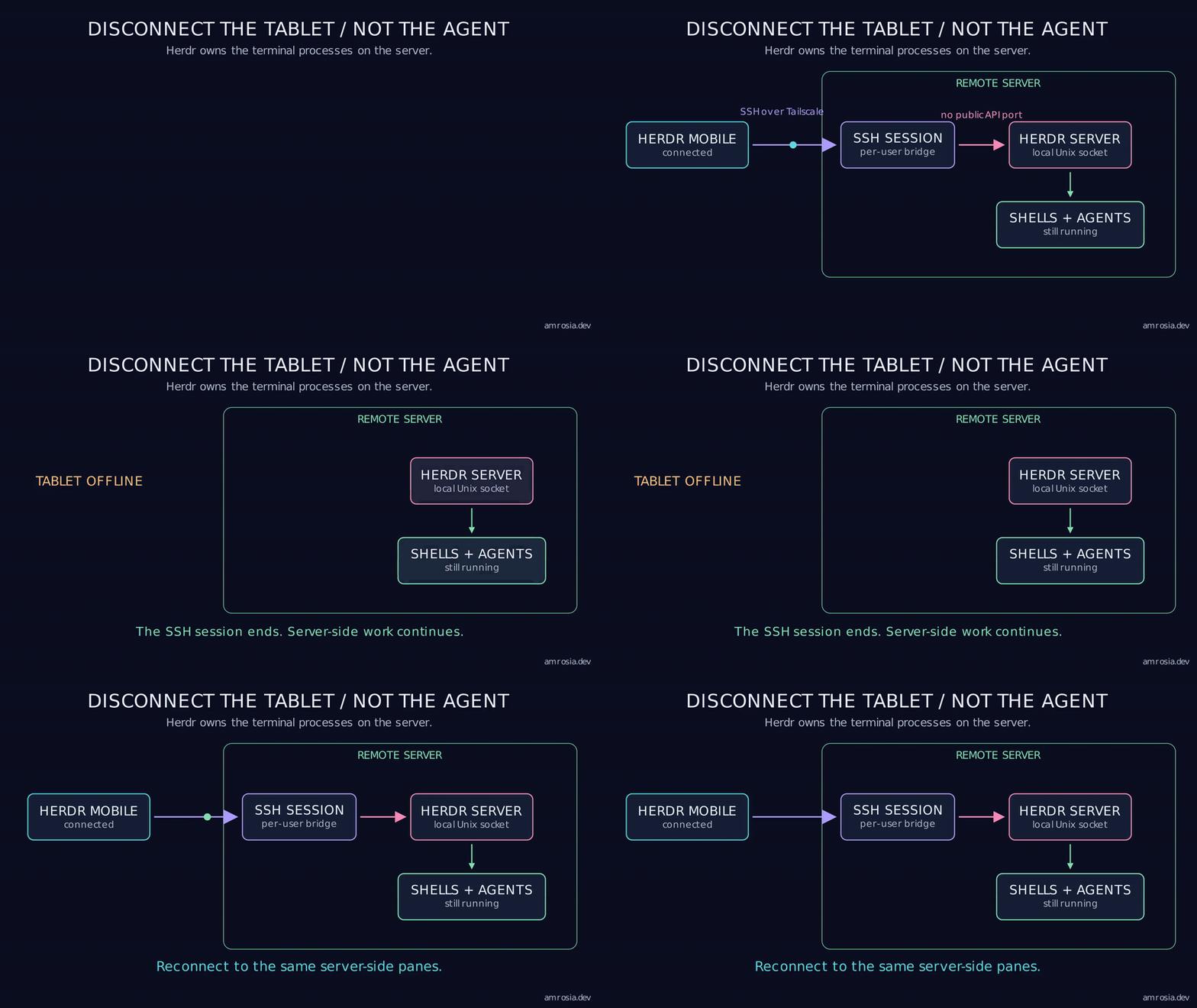
Prepare the server
curl -fsSLo /tmp/herdr-install.sh https://herdr.dev/install.sh
less /tmp/herdr-install.sh
sh /tmp/herdr-install.sh
export PATH="$HOME/.local/bin:$PATH"
herdr --version
~/.config/systemd/user/herdr.service, adjusting the executable path if the installer placed it elsewhere:[Unit]
Description=Herdr server
[Service]
ExecStart=%h/.local/bin/herdr server
Restart=on-failure
RestartSec=5
[Install]
WantedBy=default.target
systemctl --user daemon-reload
systemctl --user enable --now herdr.service
systemctl --user status herdr.service
sudo loginctl enable-linger youruser
Add the server in the app
SHA256SUMS from the same release on the upstream Releases page. On a computer, put both files in one directory and verify the APK before transferring it to the tablet:sha256sum --check --ignore-missing SHA256SUMS
Field What to enter Name A label, such as WorkstationHost The server’s reachable address, or rc-forwarder’s tailnet name/address when using its SSH forwardSSH port 22 for a direct connection, or the gateway’s forwarded SSH port (22222 in the example)Username The account that runs Herdr Authentication Private key for the key-based OpenSSH setup below; Password only if deliberately enabled on the server ~/.ssh/authorized_keys. The app provides a command with the required directory and file permissions. Do not copy the private key to the server. Work from the tablet